
Getting Started
This article will walk you through the complete set-up process for WebClickerVRC. Alternatively, you can watch a video tutorial on YouTube or PeerTube.
Application Setup
Download the latest release from the releases page. For Linux, download the file ending in .AppImage. For Windows, download the file ending in .exe.
WebClickerVRC is bundled as a portable application that can be placed anywhere in your file system. Store it in a location where you'll be able to find it later.
Avatar Setup
Open your avatar's Unity project. Your avatar needs custom parameters and an expressions menu to use WebClickerVRC. Most avatars have these already.
Locating Menu and Parameters Assets
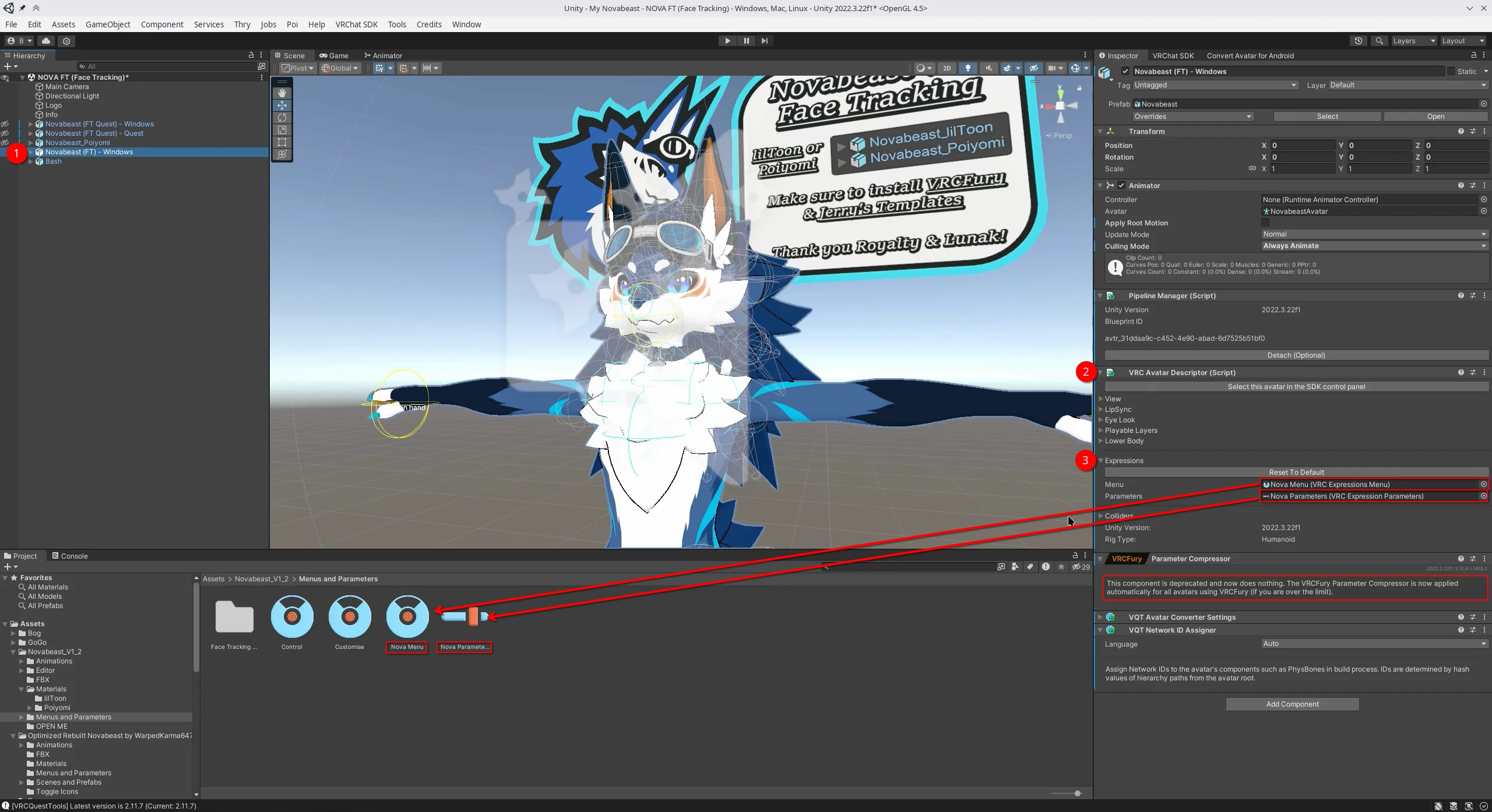
Find your avatar's parameters and expressions menu in the "Project" panel that displays your project assets. If you don't know where they are, you can find them by checking the VRC Avatar Discriptor Component on your avatar:
- In the Hierarchy, select your avatar.
- In the Inspector, locate the VRC Avatar Descriptor component.
- In that component, locate the Expressions section.
In that section, there are two fields: Menu and Parameters. Click on their values to highlight the assets in the Project panel.
Adding the Parameter
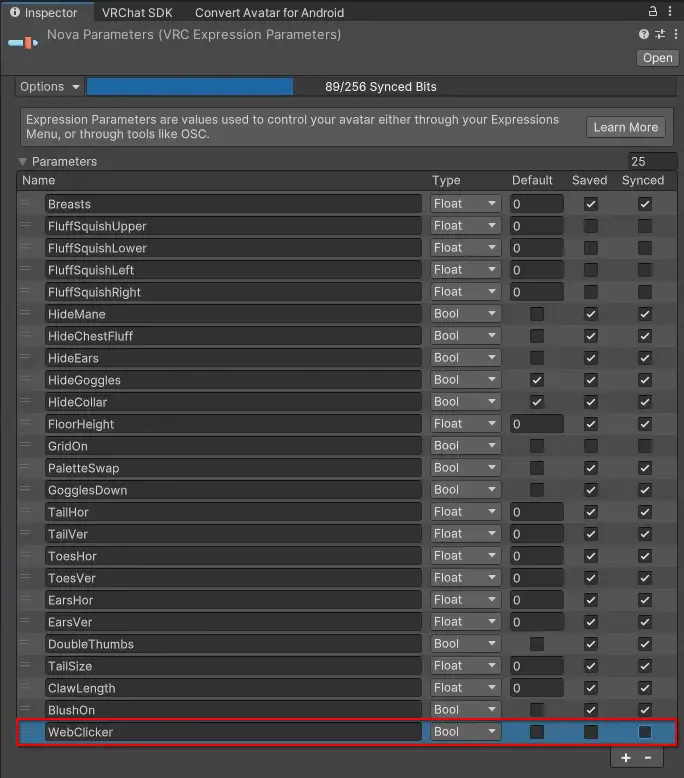
WebClickerVRC requires a boolean parameter on your avatar named WebClicker.
- In the Project panel, select your custom parameters asset.
- In the Inspector, add a new parameter using the + button at the bottom of the list of parameters.
The new parameter should be configured like this:
| Name | Type | Default | Saved | Synced |
|---|---|---|---|---|
| WebClicker | Bool | false | false | false |
TIP
A checkbox is true when checked and false when unchecked.
Adding the Menu Item
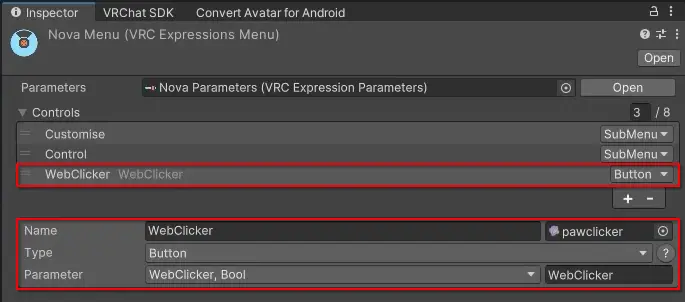
Finally, you'll need to add a button to your expressions menu that controls the new parameter.
- In the Project panel, select your expressions menu asset.
- In the Inspector, add a new control using the + button at the bottom of the list of controls.
The new control should be configured like this:
| Name | Type | Parameter |
|---|---|---|
| WebClicker | Button | WebClicker |
INFO
The name of the button can be whatever you want.
Wrapping Up
Don't forget to save your project and build and publish your avatar.
You can now use WebClickerVRC!